
TelemaTek İM3L initial setup and activation
To start using TelemaTek İM3L, switch it on and configure its settings.
This guide takes you through creating an account, adding a device and initial activation.
You can sign in directly with your device number and device password or, to access all personal account features, create a user account.
To use it without an account , sign in to the dashboard with your device number and device password. Then continue from step 5.
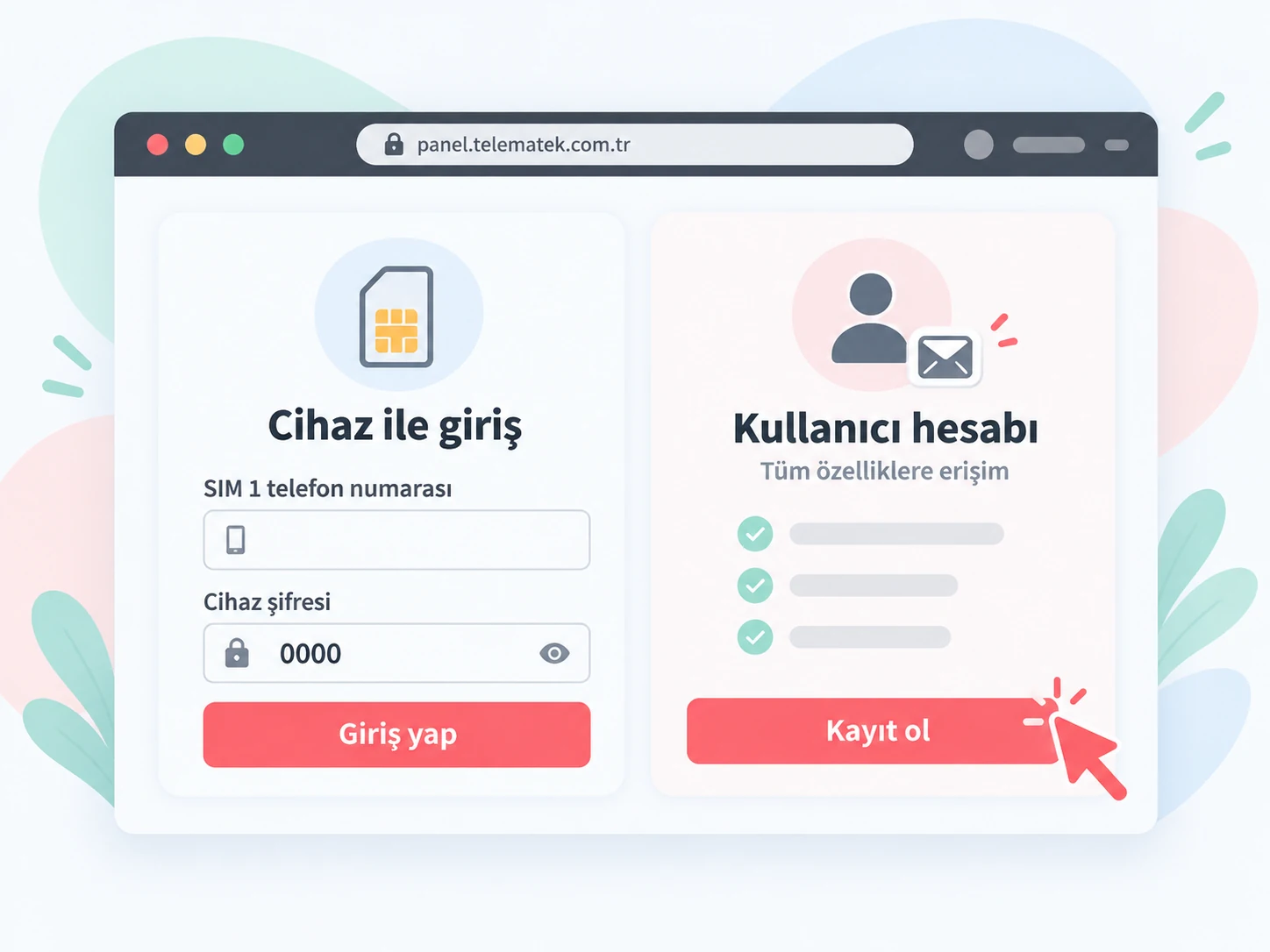
Device number and password
Find the device number on the device or its packaging.
When signing in or adding a device to your account, you can use the SIM 1 phone number.
Default device password: 0000. If you have changed it, use your current device password.
1
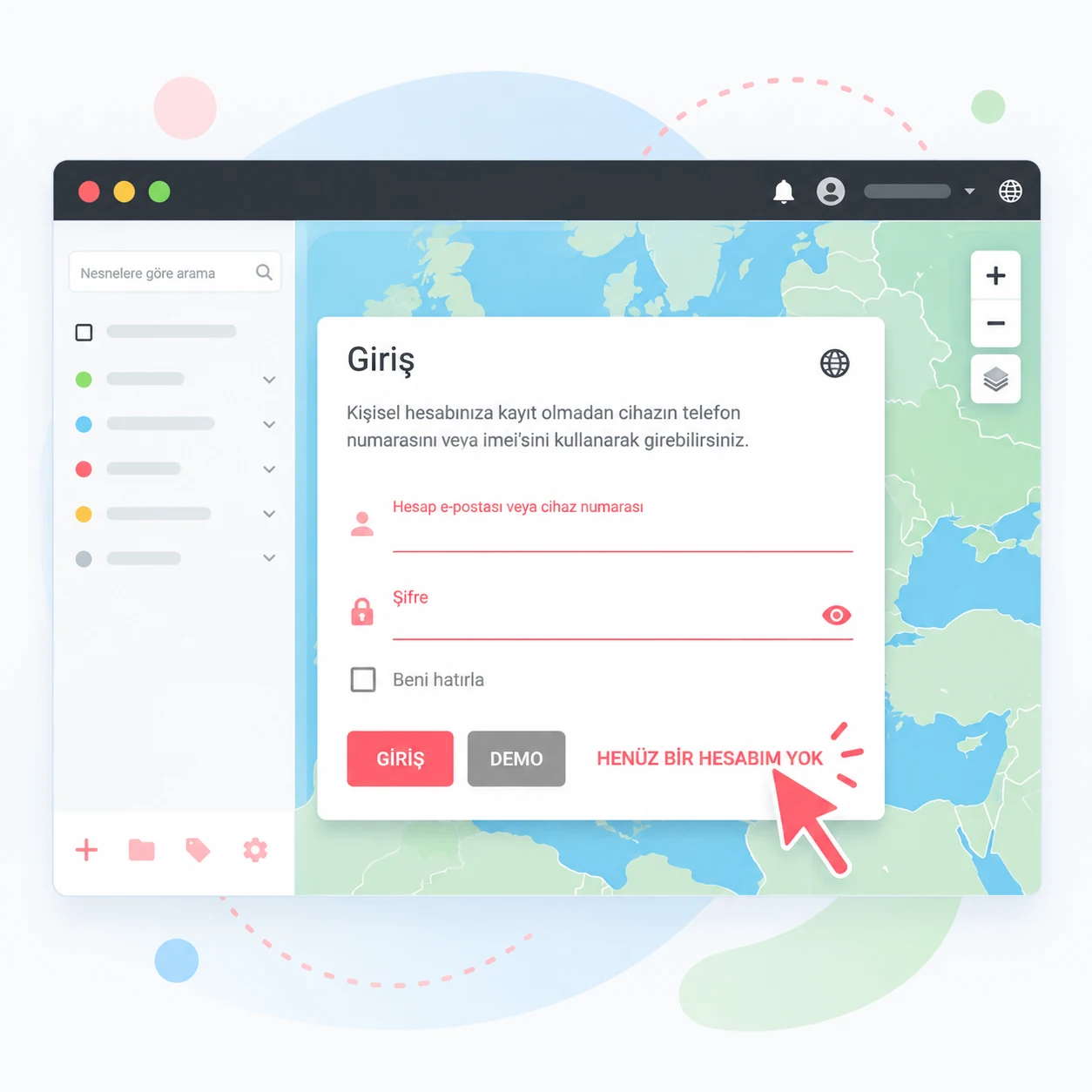
Open TelemaTek Panel
Open panel.telematek.com.tr in your browser.
To create your first account, on the sign-in screen select “I don't have an account yet”.
If you already have an active account, sign in with your email address and password and proceed to adding a device.
2
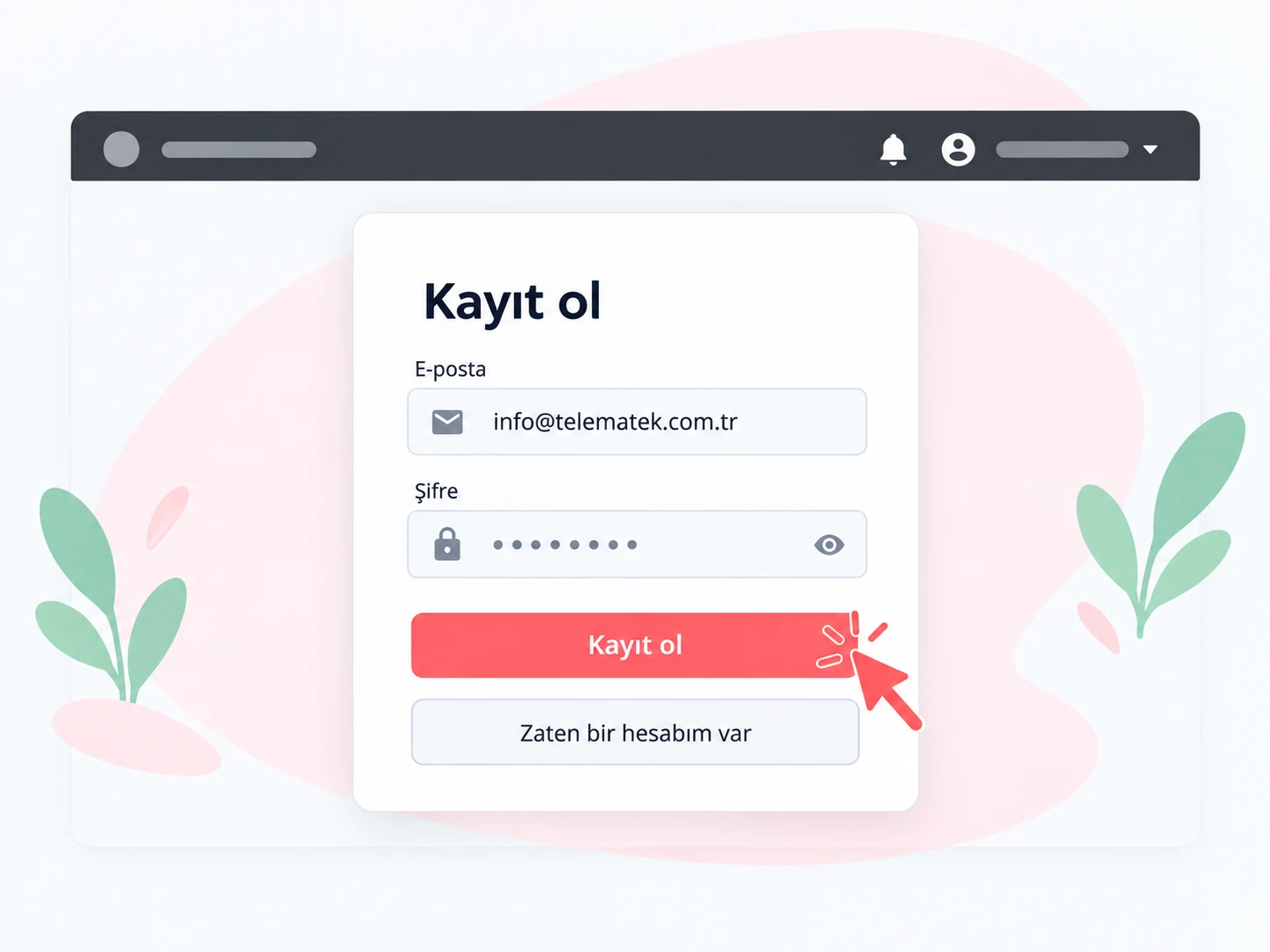
Create and verify your account
Enter your own email address on the registration screen and choose an account password. Then select “Register”.
Confirm your account using the verification link sent to your email address.
Your account is not activated until you verify your email address.
Once verified, sign in to TelemaTek Panel with your email address and password.
The email address shown in the screenshots, info@telematek.com.tr , is an example. Enter your own email address when registering.
3
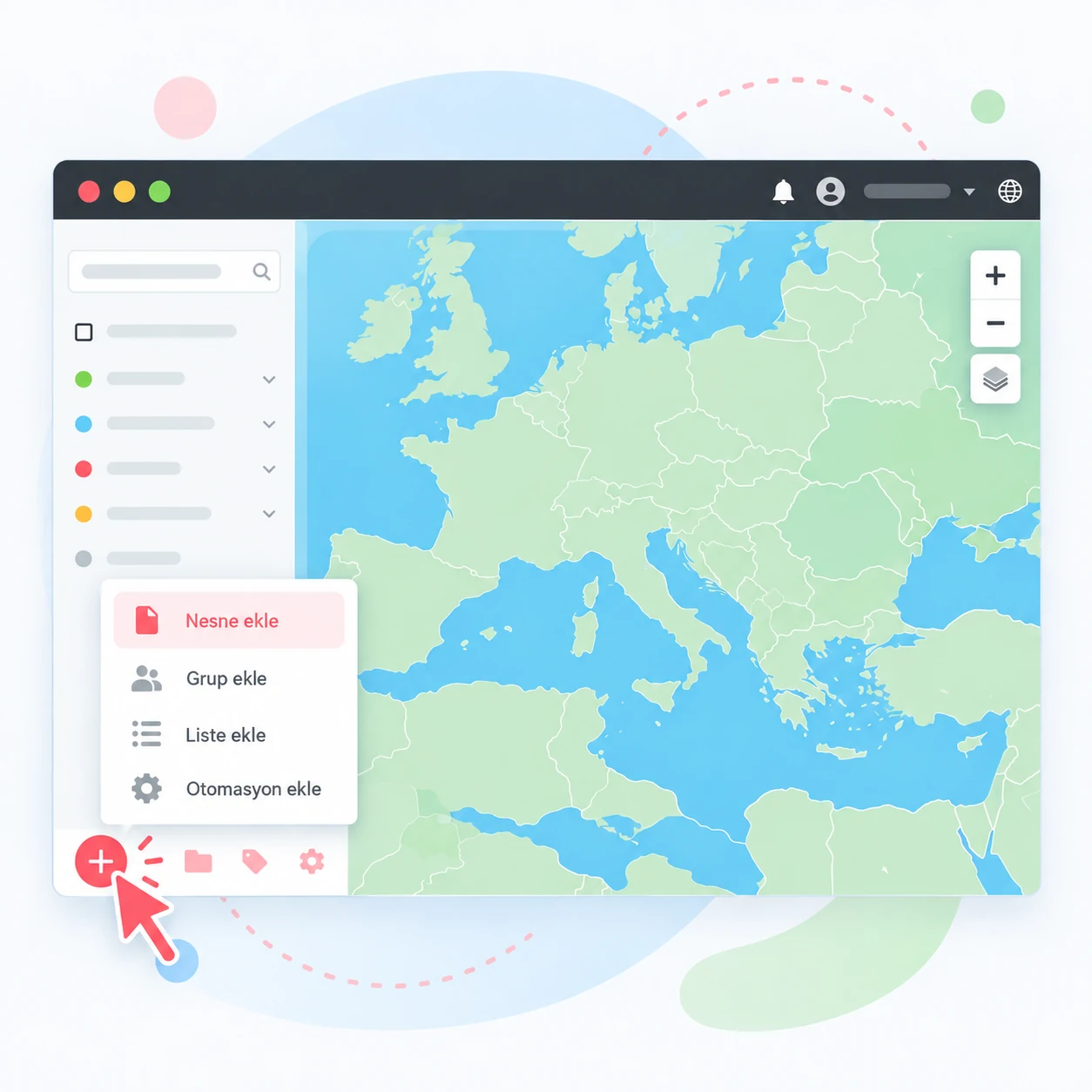
Add your new device to your account
Below the object list on the left of the dashboard, select the “+” icon.
From the menu, choose “Add object” to continue.
4

Enter device details
Complete the following fields in the window:
Device number: enter your device's number.
Device password: The default device password is 0000. If you have changed it, enter the current device password. This field is not for your user account password.
Object name in the account: Choose a name that helps you recognise the device in the dashboard, such as “Vehicle 1” or “Excavator”.
Group: Optionally, add the device to an existing group.
Check the details and select “Add”. The device will appear in your account's object list.
First device activation
Please note: Carry out initial activation outdoors with a clear view of the sky. Indoor locations, covered car parks and sheltered areas can make satellite reception difficult.
5
Go outdoors before switching on the device for the first time.
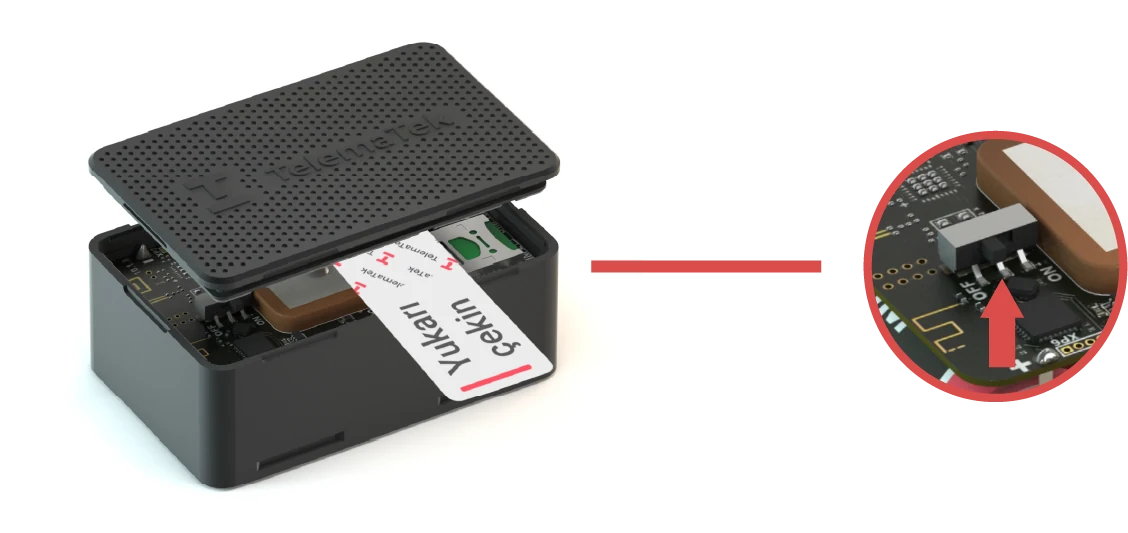
Open the device cover
Gently pull the strip to open the cover. Set the power switch to ON . Flashing LEDs indicate that the device is on. Close the cover again, pressing it down until fully closed.
Place the device with its top facing the sky, on a stable surface. Make sure nothing covers it.
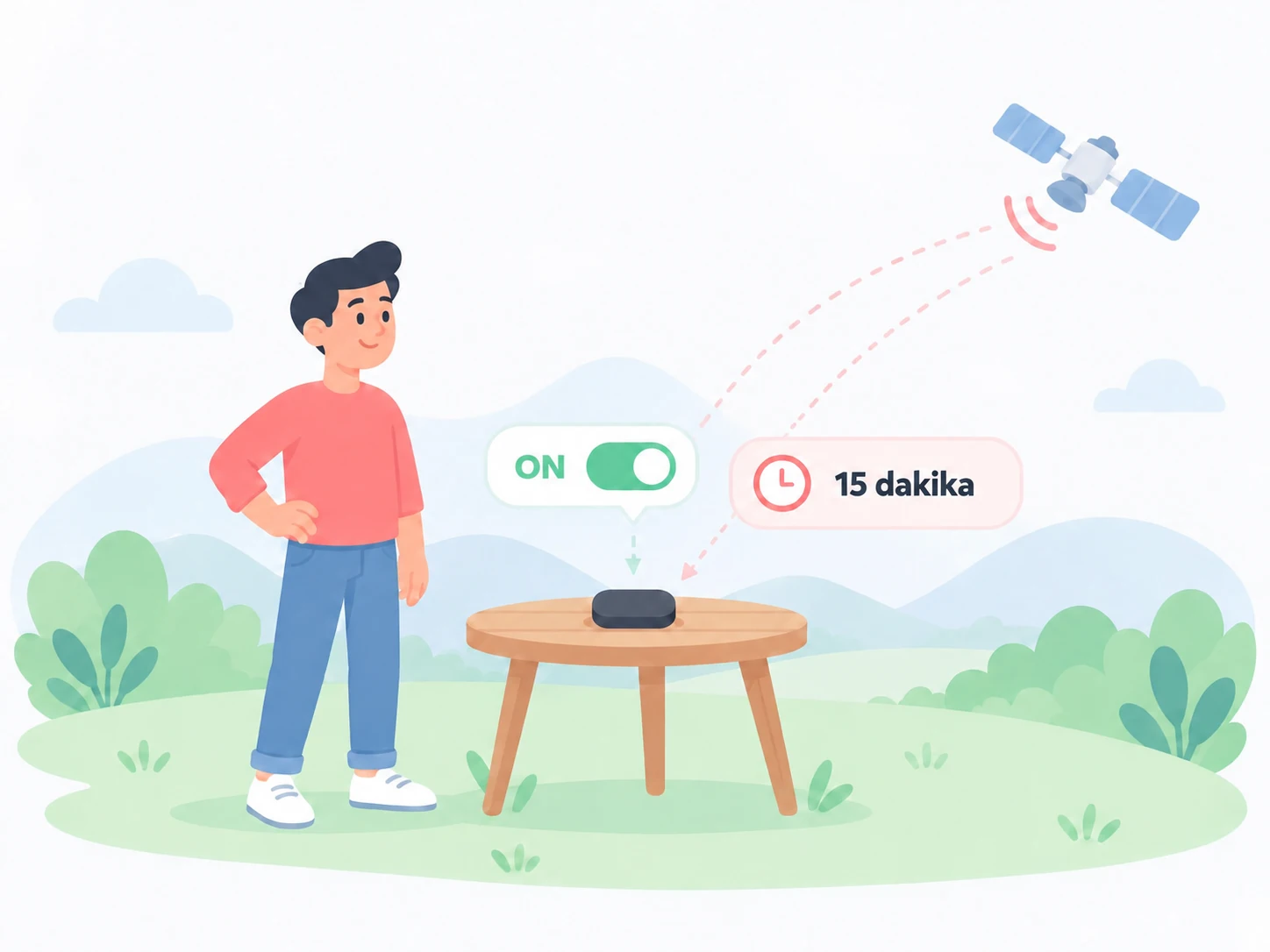
Activate the device outdoors
To obtain the first satellite fix and send data to the dashboard, we recommend leaving the device outdoors for about 15 minutes. Avoid unnecessary movement or switching the device on and off during this time.
Wait 15 minutes
6
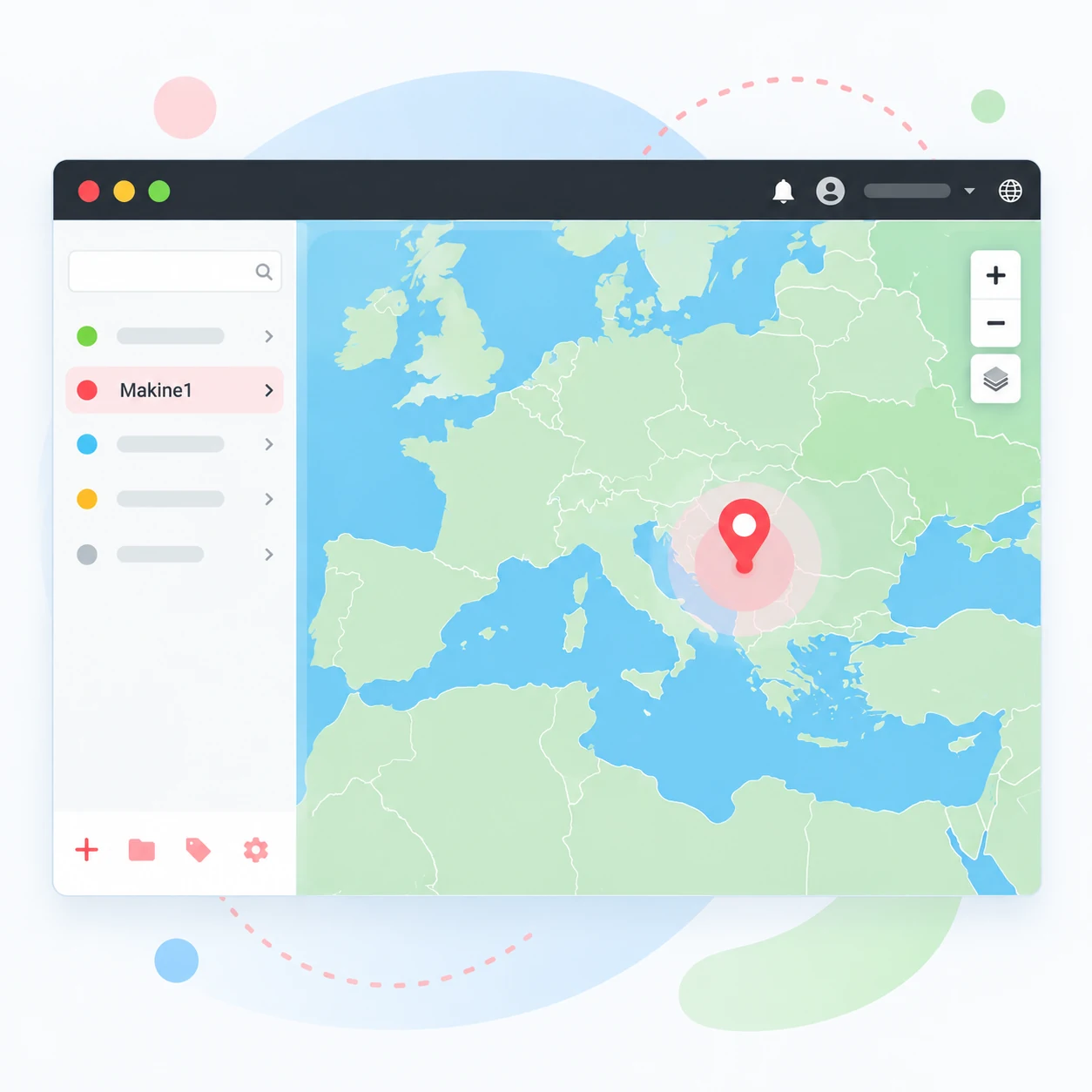
Check the first connection and location
After about 15 minutes, open TelemaTek Panel and check your device's records.
Open the “History” tab to see communication sessions and recorded events.
Find the new connection record created after you switched on the device. Check its date, time and mapped location.
The connection timestamp does not have to match the exact switch-on time. Positioning and transmission can make it a few minutes later.
7
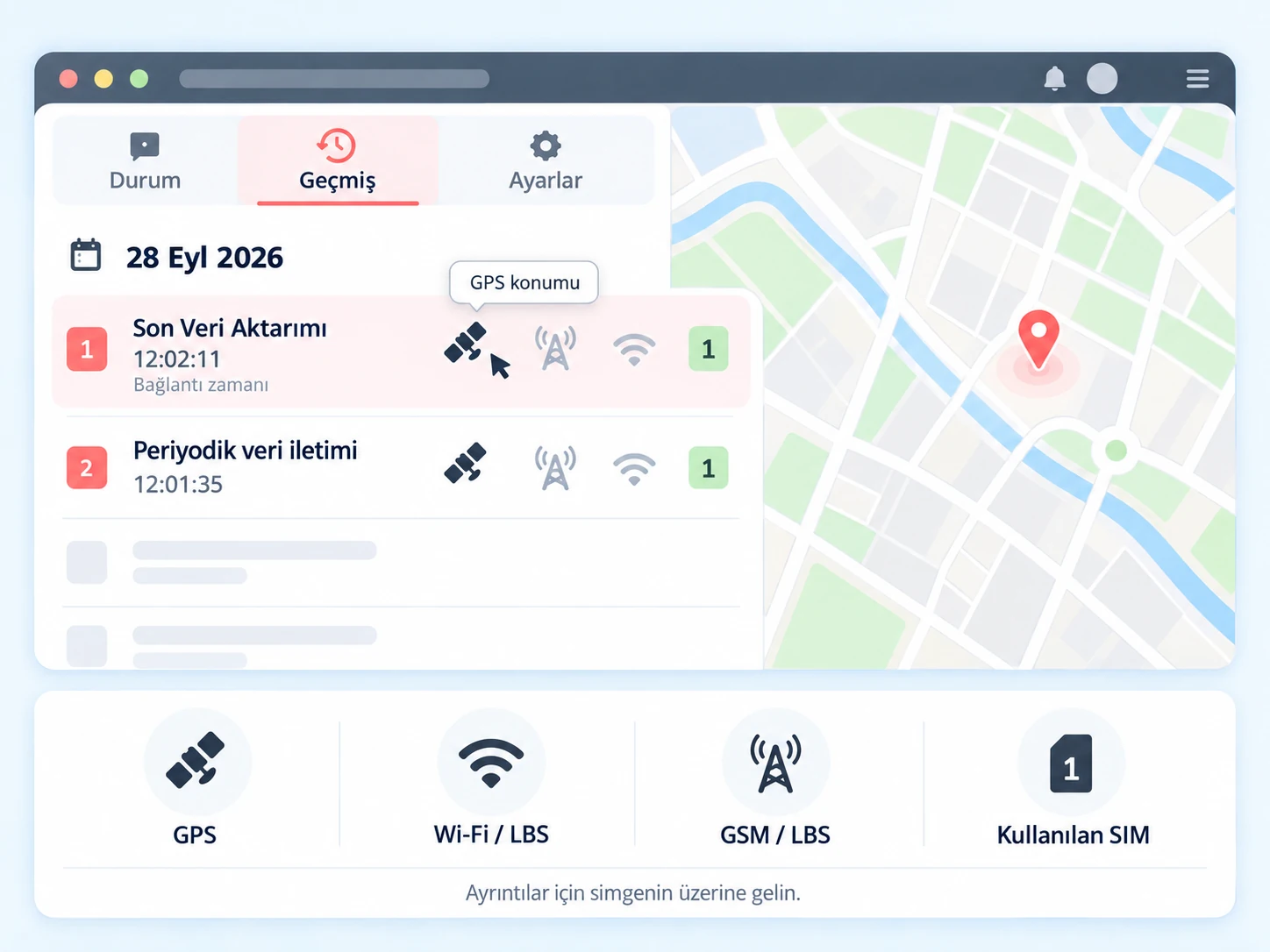
Review the displayed location
carefully.
Small icons beside each record show the positioning method and the SIM card used for transmission.
Hover over an icon to see a detailed explanation.
- Satellite icon — GPS: a filled icon means the location was calculated using GNSS satellite signals.
- Wi-Fi icon — Wi-Fi/LBS: a filled icon means the location was determined using nearby Wi-Fi networks.
- Base station icon — GSM/LBS: a filled icon means the location was determined over the mobile network. This method may be used when satellite and Wi-Fi positioning are unavailable.
- SIM card icon: The number identifies the SIM used for transmission. The device uses a suitable SIM according to network access and signal conditions.
Check these three points together:
- After switching on the device, a new connection record should appear.
- The mapped location should match the device's actual location .
- To confirm a GPS fix, look for a filled satellite icon beside the record.
A new record with a Wi-Fi or GSM/LBS location confirms successful transmission and positioning through Wi-Fi/LBS or GSM/LBS.
GPS positioning requires an outdoor location with a direct view of the sky. Steel and concrete obstruct satellite signals and cause reflections.
8
Your device is ready
Once the first connection and location are verified, TelemaTek İM3L is ready to use.
Configure the operating interval and other settings for your usage scenario, then place the device in the vehicle, equipment or other asset you want to track.
What if no location is displayed?
If no location appears, or the displayed location does not match your position, contact our technical support team on WhatsApp. We can help complete initial activation.
Simply include your device number in the message.